Setting up Public Meetings and Webinars Correctly to Avoid Intruders
Many departments organize public meetings and webinars (online seminar) using Zoom but they are not aware of any security measures for preventing intruders from disturbing their events. Like face-to-face seminars, it is possible to have guests (mostly uninvited guests) who may interrupt the meetings if proper controls are not in place.
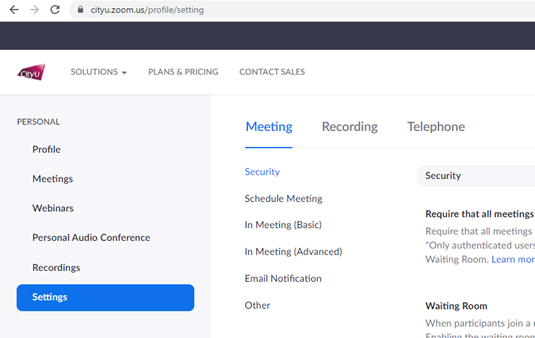
Before going on any further, please be reminded that when you share a meeting link via public postings, it implies that you are inviting EVERYONE to join your meeting. In this regard, it is nearly impossible to control who can attend the meeting. Most of the settings can be configured to safeguard your meeting. Login to your Zoom account under CityU Zoom portal to find out more:
Here are the DOs and DON’Ts tips for your consideration when scheduling public seminars.
| DOs | |
|---|---|
|
Use Webinar The webinar is designed for holding public forums. It divides the participants into panelists and attendees with different predefined privileges. For example, attendees are view-and-listen-only participants, muted by default. It is therefore easier for the host to manage attendees’ behaviour without affecting the panelists. Since the limited number of Webinar add-on licenses are assigned on a first-come-first-serve basis, you are advised to raise a CSC Work Request as soon as your Webinar is confirmed. Once you have a Webinar license, you can set up your Webinar from the following option: 
|
|
|
Use Registration Requiring users to register can provide another level of control. Those users who register will receive meeting invitations with unique meeting links. Through registration, the organizer can obtain personal information of the applicants and this information may help the organizer decide whether to approve their applications. The following is the “Registration” option when scheduling a meeting: 
|
|
|
Use Passcode Enable passcode for the meeting. It is also suggested not to embed the passcode in the meeting links, this can prevent intruders from tapping the URL from your participant’s computer through the network. The following is the “Passcode” option that you can enable when you schedule your meeting: 
|
|
|
Use Waiting Room The Waiting Room is a virtual staging area that prevents guests from joining until they are permitted. Thus, the meeting host can closely monitor and control who can join. As a host, you can customize the controls of Waiting Room, and you can even personalize a message for people to see when they hit the Waiting Room so that they know they are in the right meeting. This message is really a great spot to post any rules/guidelines for your event, like whom it is intended for. Check whether you have turned on the “Waiting Room” feature when you schedule your meeting: 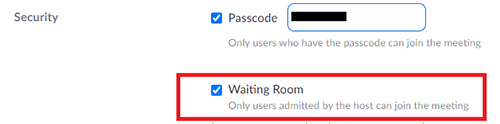
|
|
|
Use Up-to-date Zoom Client As a host, you should make sure your Zoom client is the latest and most up-to-date which covers all the known bugs and vulnerabilities. To check if your client is up-to-date, open your zoom client and follow the steps below: 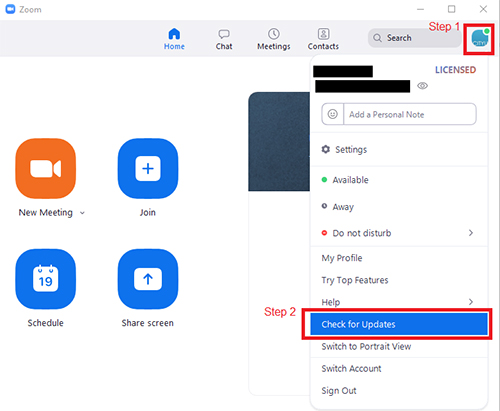
|
| DON'Ts | |
|---|---|
|
Avoid Disclosing the Meeting Link in Public Media Do not post your meeting link directly in any public media. Obviously, if your meeting link is open to everyone with no authentication, there will be no control on who can join. Also, it is a good practice to advise your participants not to do so in your invitation. If the meeting is really to attract public audiences, you should consider using social broadcasting media such as Facebook and YouTube. |
|
|
Avoid using Personal Meeting ID (PMI) Your PMI is basically one continuous meeting ID which many people may know from previous meetings. So there is a greater chance of leaking out this “secret” number already. It is strongly advised to generate a random meeting ID automatically rather than using your PMI when scheduling public meetings. 
|
|
|
Avoid Screen Sharing Many intruders like to disrupt the meeting by sharing their screens to other participants. If the invited participants are not required to share their screens during the meeting, you should allow only hosts or other authorized people to share their screens and disable all other participants to have this option. To restrict only host can share screen in a meeting room, click “Host Only” on the meeting setting page. 
|
|
|
Avoid Meeting Chat Chatting is one of most favourable things that intruders would like to do. In most cases, public seminars do not normally turn on the “Chat” feature for audiences. Therefore, it is recommended to disable all participants from the ability to chat in the basic setting. 
|
|
|
Avoid Allowing Annotation to All Users In general, meeting participants do not need to annotate on others’ presentations. It is recommended to turn off the “Annotation” feature prior to the meeting in the basic setting. 
|
The above preventions can be configured when you are scheduling your meeting. However, you can still do more during the meeting. Please refer to Managing participants in a meeting.